Claude and Claude Code: The Complete Beginner-to-Pro Guide (2026)
Everything You Need to Know About Claude and Claude Code
Claude is the AI assistant built by Anthropic, and Claude Code is its agentic coding tool. Together they cover almost every kind of digital work: writing, research, analysis, design, presentations and full software development.
Many new users only scratch the surface. They type a question, read the answer and move on. The real power sits in features such as projects, skills, connectors, artifacts, memory and, for developers, an AI agent that can read an entire codebase and change it on request.
This guide explains what Claude and Claude Code are, what each plan includes, how every major feature works and how beginners and professionals alike can get the maximum value from both tools. Diagrams illustrate the trickier workflows, and a FAQ answers the most common questions.
What Is Claude?
Claude is a family of large language models developed by Anthropic, an AI safety and research company. It can hold natural conversations, write and edit text, analyze documents and images, search the web, write and run code, and complete multi-step tasks with tools.
Claude is not a single model. Anthropic offers several tiers so users can trade speed and cost against raw capability:
| Model | Best for | Plan access |
|---|---|---|
| Fable 5.1 (Mythos tier) | Long-running agents and the hardest, most complex problems | Paid plans, with limits |
| Opus 5.5 | Daily driver for agentic coding and demanding professional work | Pro and above |
| Sonnet 5.5 | High-performance coding, writing and agents at lower cost | All plans, including Free |
| Haiku 5.5 | The fastest and most cost-efficient model for quick tasks | All plans, including Free |
A simple rule helps beginners choose: Haiku for speed, Sonnet for most everyday work, Opus for serious professional and coding tasks, and Fable when a problem truly needs maximum capability. Models can be switched from the model picker in the chat window at any time.
Where Can Claude Be Used?
The same Claude models sit behind every Anthropic product, so skills learned in one place carry over to the others. The diagram shows the four main ways people reach Claude.
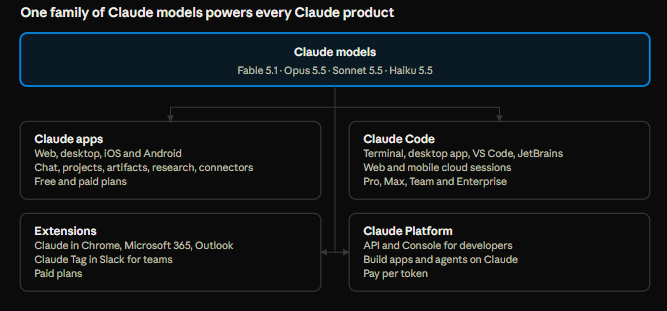 Most beginners start in the Claude apps. Developers add Claude Code, power users add browser and Office extensions, and builders use the Claude Platform API to create their own products. The apps are available at claude.ai and as downloads for Windows, macOS, iOS and Android.
Claude Free vs Paid Plans: Which One to Choose?
Claude offers a generous free plan, but Claude Code, Opus and several power features require a paid subscription. Prices below come from the official Claude pricing page and exclude tax.
| Plan | Price (USD) | Who it suits | Key additions |
|---|---|---|---|
| Free | $0 | Beginners and occasional users | Chat on web, desktop and mobile; web search; file creation and code execution; memory; connectors; skills; artifacts; Claude Design, Slides and Docs; up to 5 projects; Sonnet and Haiku |
| Pro | $20/month, or $17/month billed annually | Individuals using Claude daily | More usage; Claude Code; Opus; Research; unlimited projects; Claude in Chrome; Claude for Microsoft 365; scheduled tasks; Dashboards (beta) |
| Max 5x | $100/month | Heavy users and developers | 5x Pro usage; higher output limits; priority access; early access to new features; $100/month in API credits |
| Max 20x | $200/month | People working with Claude all day | 20x Pro usage plus everything in Max 5x; $200/month in API credits |
| Team | $25/seat/month standard, $125/seat/month premium (less when billed annually) | Teams of 2 to 150 | Shared projects; SSO; central billing; enterprise search; no model training on content by default |
| Enterprise | $20/seat/month plus usage at API rates, annual, 20-seat minimum | Large organizations | SCIM, audit logs, role-based access, custom retention, HIPAA-ready option, Claude Security (beta) |
How usage limits work. Every plan has limits that reset on a rolling five-hour window, and paid plans add weekly limits. Chats, apps and Claude Code all draw from the same pool. Long conversations, large files and more powerful models use the allowance faster.
A practical upgrade path. Most people start on Free, move to Pro once Claude becomes part of daily work, and step up to Max only if they hit Pro limits regularly, usually because of heavy Claude Code use. Paid plans can also turn on usage credits to keep working after a limit at standard API rates.
Privacy note. On individual plans, model training on conversations is opt-out, so privacy-minded users should review the setting in their account. Team and Enterprise plans do not train on content by default.
Claude Features and Capabilities Explained
Claude does far more than answer questions. These are the features that make the biggest difference in everyday use.
Conversation and writing. Claude drafts emails, blog posts, reports and stories, rewrites text in a different tone, summarizes long material and translates between languages.
File uploads and analysis. Users can attach PDFs, Word files, spreadsheets, images and more. Claude reads them, extracts key points, compares documents and answers questions about their contents.
Web search and Research. Web search lets Claude pull in current information with citations. Research, available on Pro and above, runs a deeper multi-source investigation and returns a full report.
File creation and code execution. Claude can run code in a secure sandbox to analyze data, build charts, and create real files such as spreadsheets, documents and presentations.
Artifacts. Artifacts are standalone pages Claude builds, such as websites, calculators, interactive tools and visual explainers. Each one gets its own private link that can be shared.
Claude Design, Slides and Docs. These built-in artifact types give dedicated editors for visual designs, slide decks and documents. Users can edit text directly, comment and export to common formats such as PDF, PowerPoint or Word.
Projects. A project groups related chats with shared files and custom instructions, so Claude always has the right background. Free users get up to five projects; paid plans get unlimited projects.
Memory and preferences. Claude can remember useful context across conversations, and user preferences set a standing style, such as preferred tone or formatting. Incognito chats are available when nothing should be remembered.
Connectors. Connectors link Claude to apps such as Google Drive, Gmail, Slack, Notion and many others, so it can read and act on a user's own data with permission.
Skills and plugins. Skills are reusable instruction packs that teach Claude a specific workflow, such as a company's report format. Plugins bundle skills, connectors and commands for a whole role or team.
Voice mode. Users can talk to Claude and hear spoken replies, which is useful for brainstorming on the go.
Claude in Chrome and Microsoft 365. On paid plans, Claude can work inside the browser, filling forms and navigating sites, and inside Word, Excel, PowerPoint and Outlook.
Scheduled tasks. Paid plans can hand off work and schedule recurring tasks, such as a weekday morning briefing.
How to Get the Most Out of Claude: Prompting Tips
The quality of Claude's answer depends heavily on the quality of the request. A strong prompt gives Claude the same briefing a skilled human assistant would need.
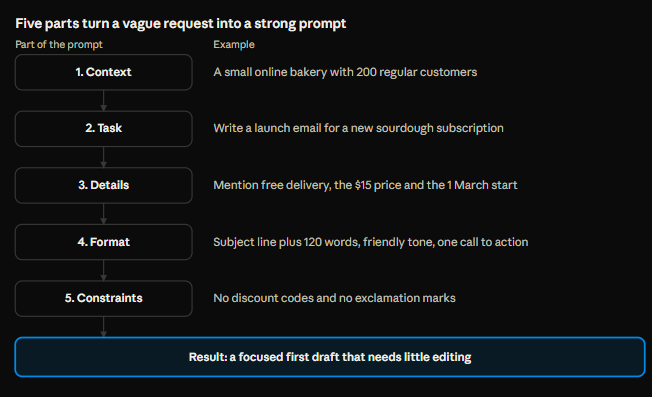 Each part removes guesswork: context explains the situation, the task names the goal, details supply the facts, format sets the shape of the answer and constraints rule out unwanted results.
More ways to get better results:
- Share examples. Pasting a sample of the desired style, or a past email that worked well, teaches Claude faster than any description.
- Iterate instead of restarting. Follow-up requests such as "shorter," "more formal" or "add a table" refine a draft quickly.
- Ask Claude to ask questions. Ending a prompt with "ask clarifying questions before starting" surfaces missing information early.
- Use projects for repeat work. Uploading brand guidelines or reference files to a project saves re-explaining them in every chat.
- Request structure. Asking for headings, bullet points, tables or a specific file type makes output easier to use.
- Pick the right model. Haiku or Sonnet handle quick jobs; Opus is worth the extra usage for complex analysis or long documents.
- Start new chats for new topics. Very long conversations use more of the allowance and can blur the focus.
Anthropic also publishes a free prompt engineering guide for those who want to go deeper.
What Is Claude Code?
Claude Code is Anthropic's agentic coding tool. Instead of copying code back and forth from a chat window, developers give Claude Code a task in plain language and it works directly in their project: reading files, running commands, editing code, running tests and creating Git commits.
It runs in several places, all sharing the same engine and settings:
- Terminal (CLI): the original and most powerful interface.
- Desktop app: a visual Code tab for people who prefer not to use a terminal, with diff views, app previews and parallel sessions.
- VS Code and JetBrains IDEs: extensions that bring Claude Code into the editor.
- Web and mobile: cloud sessions that run on Anthropic's servers against a connected GitHub repository, so work continues even when the laptop is closed.
- Slack, GitHub Actions and GitLab CI/CD: for teams that want Claude to respond to mentions, review pull requests or fix issues automatically.
Who is it for? Professional developers use it to fix bugs, add features, refactor and write tests faster. Beginners use it to understand unfamiliar codebases and learn by watching how changes are made. Non-programmers increasingly use it to automate tasks across files and folders.
Claude Code is included in all paid plans (Pro, Max, Team and Enterprise) and shares the same usage pool as chat. It is not available on the Free plan. Developers who need more capacity can also connect it to pay-as-you-go API credits through a Claude Console account.
How to Install Claude Code and Run a First Session
Installing Claude Code takes a couple of minutes on macOS, Linux or Windows. The native installer is the recommended method and updates itself automatically in the background, according to the official setup guide.
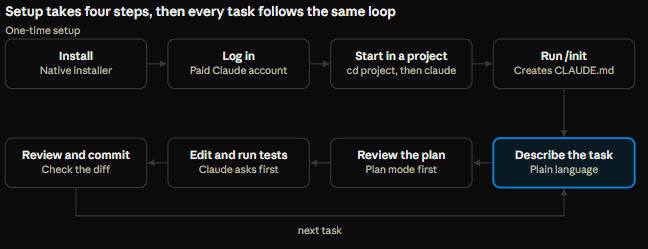 Setup happens once. After that, every task follows the same loop of describe, plan, edit and test, then review and commit.
Step 1: Install. One command does the job:
# macOS, Linux and WSL
curl -fsSL https://claude.ai/install.sh | bash

# Windows PowerShell
irm https://claude.ai/install.ps1 | iex

# Or with a package manager
brew install --cask claude-code
winget install Anthropic.ClaudeCode
Git for Windows is recommended on native Windows so Claude Code can use Bash. Those who prefer no terminal at all can use the Claude desktop app or the VS Code extension instead.
Step 2: Log in. Running claude for the first time opens a browser sign-in with a Pro, Max, Team or Enterprise account, or a Claude Console account billed per token.
Step 3: Start in a project. Open a terminal in the project folder and run claude. Claude reads files as needed, so there is no need to paste code in manually.
Step 4: Run /init. This scans the project and writes a starter CLAUDE.md with build commands and conventions. Editing it to add team rules pays off in every later session.
The everyday loop. A good first request is "explain how this project is structured." After that, Claude can fix a bug, add a feature or write tests. It always asks before editing files or running commands, shows each change as a diff, and can create Git commits and pull requests on request.
Claude Code Features Every User Should Know
CLAUDE.md (project memory). A CLAUDE.md file in the project root holds standing instructions: build commands, coding conventions, folder structure and rules such as "always run tests before committing." Claude reads it at the start of every session. Running /init creates a starter file automatically, and Claude Code also reads AGENTS.md files used by other tools. An auto memory feature lets Claude save useful learnings as it works.
Slash commands. Typing / shows built-in commands. Useful ones include /init, /memory, /clear to reset context, /compact to summarize a long session, /usage to check consumption, /mcp to manage connections and /doctor to diagnose setup problems.
Permission modes and plan mode. Claude Code asks before editing files or running commands by default. Plan mode lets Claude explore and propose a plan without changing anything, which is ideal before large changes. Auto mode lets trusted, low-risk actions proceed with fewer prompts.
Checkpoints and rewind. Every change is checkpointed, so a session can be rewound if Claude goes in the wrong direction.
Subagents. Subagents are specialized helpers with their own context, such as a code reviewer or debugger. Claude can delegate research or review to them, keeping the main conversation focused. Agent teams and workflows extend this to many agents working in parallel.
Worktrees and background sessions. Git worktrees let several Claude sessions work on different branches at once without conflicts. Agent view shows all running sessions in one place.
Hooks. Hooks run shell commands automatically at set moments, for example formatting code after every edit, blocking edits to protected files, or sending a notification when Claude needs input.
MCP servers. The Model Context Protocol connects Claude Code to external tools such as GitHub, databases, issue trackers and design files. Connectors set up on claude.ai can also flow into Claude Code.
Skills and plugins. Skills teach Claude repeatable workflows and load only when relevant. Plugins package skills, subagents, hooks and MCP servers so teams can share an entire setup with one install from a marketplace.
Headless mode and automation. Running claude -p "prompt" lets scripts and CI pipelines use Claude Code non-interactively. The GitHub Action responds to @claude mentions in issues and pull requests.
Code review and security. Built-in review commands, cloud Code Review on pull requests, and security plugins help catch bugs and vulnerabilities before they ship.
Remote Control and scheduled tasks. A local session can be continued from a phone, and routines can run Claude Code on a schedule or in response to GitHub events.
How to Get the Most Out of Claude Code: Best Practices
Anthropic's own best practices guide highlights a handful of habits that separate average results from excellent ones.
- Give Claude a way to check its work. Tests, a build command, a linter or a screenshot of the expected result let Claude verify changes instead of guessing. This single habit improves results more than any other.
- Explore, then plan, then code. For anything non-trivial, ask Claude to read the relevant files first, use plan mode to agree on an approach, and only then implement.
- Be specific. "Fix the login bug" is vague. "Users see a 500 error after entering a wrong password twice; check
auth/login.phpand add a test" gets a precise fix. - Keep CLAUDE.md short and useful. Include commands, conventions and gotchas. Move long, occasional instructions into skills so they load only when needed.
- Manage context aggressively. Use
/clearbetween unrelated tasks and/compactin long sessions. Delegate large searches to subagents so the main context stays clean. - Course-correct early. Press Esc to interrupt as soon as Claude heads the wrong way, then redirect. Rewinding is cheaper than letting a mistake grow.
- Commit often. Small Git commits create safe restore points and make Claude's changes easy to review.
- Choose the right model. Sonnet handles most coding well; Opus or Fable suit complex architecture and hard debugging. Lighter models save usage on simple jobs.
- Let Claude interview the user. For a new feature, asking Claude to pose clarifying questions first often produces a far better specification.
- Add an independent review step. A fresh subagent or
/code-reviewthat has not seen the work catches problems the original session overlooks.
Limitations, Safety and Common Mistakes
Claude is powerful, but it is not perfect. Knowing its limits protects both results and data.
- Claude can be wrong. It can misread a source or state something false with confidence. Facts, figures, legal points and medical claims should always be checked against primary sources.
- Usage limits are real. Long chats, huge files and the most powerful models consume the allowance faster. Starting a fresh chat for a new topic and choosing a lighter model for simple jobs stretches it further.
- Sensitive data needs care. Passwords, API keys, financial details and confidential client data should never be pasted into prompts. Individual-plan users should review the model-training setting.
- Claude Code acts on real files. It asks permission by default for good reason. Users should read proposed commands, avoid blanket approval in unfamiliar projects, and keep work in Git so any change can be undone.
- Third-party plugins and MCP servers deserve scrutiny. They can run code and reach data. Installing only from trusted marketplaces and reviewing what a plugin does is the safe default.
- Over-long instructions backfire. A bloated CLAUDE.md or an unfocused prompt dilutes the important rules. Short, specific guidance works better.
The most common beginner mistake is treating Claude like a search engine. It performs best as a collaborator that receives context, a clear goal and feedback on each draft.
Frequently Asked Questions About Claude and Claude Code
Is Claude free to use? Yes. The Free plan includes chat on web, desktop and mobile, web search, file creation, memory, connectors, skills, artifacts and up to five projects, with Sonnet and Haiku models. Usage is limited.
Is Claude Code free? No. Claude Code is included with every paid plan, starting with Pro at $20 per month, but not with the Free plan.
What is the difference between Claude Pro and Max? Max includes everything in Pro, with 5x or 20x more usage, higher output limits, priority access at busy times and monthly API credits. It suits people who hit Pro limits often, usually through heavy Claude Code use.
Does Claude Code work on Windows? Yes. It runs natively on Windows through PowerShell or CMD, with Git for Windows recommended, and also inside WSL. It runs on macOS and Linux as well.
Can Claude Code be used without the terminal? Yes. The Claude desktop app, the VS Code and JetBrains extensions, and the web and mobile apps all offer Claude Code without a command line.
What is CLAUDE.md? It is a plain text file of project instructions that Claude Code reads at the start of every session, covering commands, conventions and rules.
Does Claude train on user conversations? On individual plans, training is opt-out and can be turned off in settings. Team and Enterprise plans do not train on content by default.
Which Claude model is best? Sonnet is the best all-rounder for most users. Opus suits demanding professional and coding work, Haiku suits fast simple tasks, and Fable handles the hardest long-running problems.
Conclusion: Start Small, Then Go Deep
Claude and Claude Code reward people who go beyond simple questions. A beginner can start on the Free plan today, learn to write strong prompts, organize work into projects and connect everyday apps. When Claude becomes part of daily work, Pro unlocks Claude Code, Opus and Research, and Max adds the headroom heavy users need.
For developers, the biggest gains come from a few habits: a clear CLAUDE.md, plan mode before big changes, tests that let Claude verify its own work, and frequent Git commits. Add skills, subagents, hooks and MCP servers over time, and Claude Code grows from a helpful assistant into a full development partner.
Help by sharing this guide with a friend or teammate who is just getting started with Claude can save them hours of trial and error.
Continue Exploring